Sep 28, 2017 · 9 min read
How to Get More Traffic With Google Image Search
How would you like to attract more visitors to your website? You can do that by optimizing your images.
In this article, we’ll go over the goals of image optimization and discuss what it takes to optimize images for search results and social media.
 Image optimization might be one of the most overlooked elements of search engine optimization (SEO). Many professionals view it as overkill.
It’s not overkill. In fact, it’s one of the best ways to outrank your competitors and build brand-name awareness.
Image Optimization Goals
When it comes to image optimization, you’re aiming for three goals. First, you should include images that support your page ranking and traffic. What that means is this: images should relate to the keyword that you’re ranking for on the page. For example, if you’re optimizing for “faded blue jeans,” then you should not only include pictures of faded blue jeans on the page but also optimize those images for that keyword. We’ll see more on how to optimize images in the next section. For now, keep in mind that individual search engine results are based on how images are optimized. So, if you want to optimize a page for a keyword, you need to optimize your images in addition to your text. The second goal is to rank well in Google Image Search. In case you’re unaware of it, Google has a search engine designed specifically for people who are looking for images. You want to make sure that your pictures rank well in that search engine. Why? Because it’s a great way to get the word out about your brand. For example, go to Google Image Search and search for “conversion rate optimization.” One of the top results is a featured image from a Marketing Land article about – you guessed it – conversion rate optimization.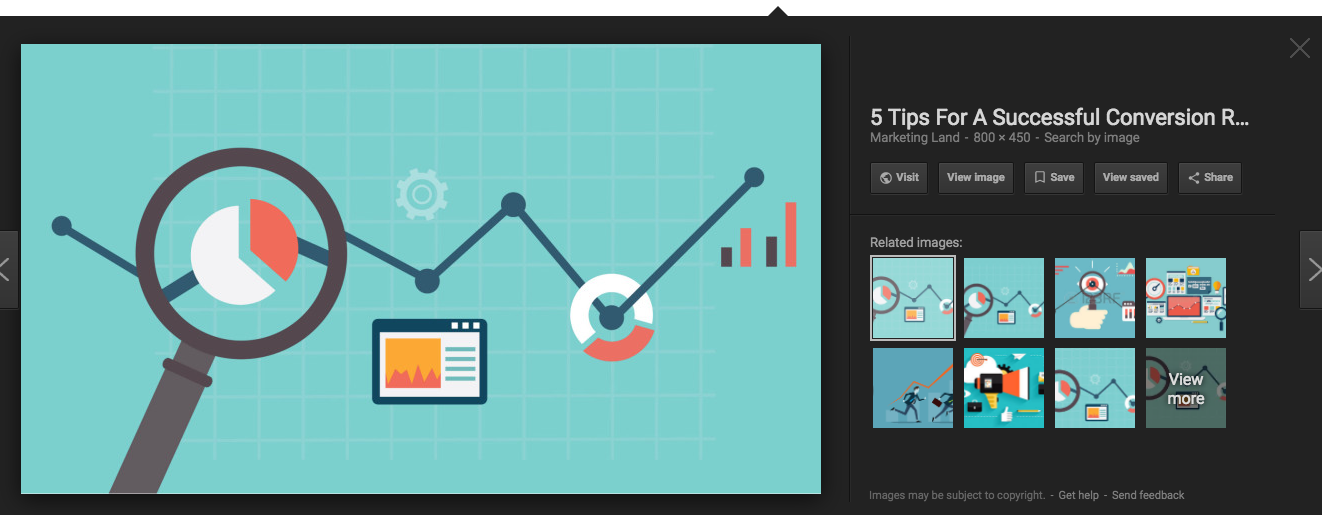
Add The Right Keywords to Your Images
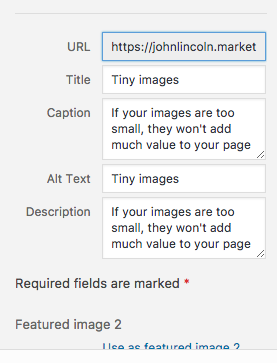
When it comes to optimizing images, the first step is to make sure that they’re associated with the right keywords. There are several parts to that step. First, name the image file based on your keyword. For example: if you’re trying to optimize for “marketing,” then name the image something like “marketing.jpg.” The Googlebot will try to derive meaning from the file name. If that meaning is associated with the keyword that you’re applying to the content of the page, so much the better. Let’s take another look at that “conversion rate optimization” image search from above. One of the first results is an image from a website located in India. How did it rank so high? Take a look at the file name: 21950308-conversation-rate-optimization_orig.gif. Do you see how it has “conversion-rate-optimization” in the name? That’s one of the reasons Google decided to rank that image at the top. Once you’ve got the file name in line with your keyword, you’re not done. There are still several other things you need to do to fully optimize the image. First, include the keyword in the alt attribute. If you’re unfamiliar with the alt attribute, it was originally added to assist people who are visually impaired. For optimization purposes, though, you can think of it as just another attribute. Next, you should also add the keyword in the image title and caption. Fortunately, a content management system (CMS) like WordPress makes it very easy to add alt text, titles, and captions to images. Just click on any image from the Library and on the right-hand side of the screen you’ll see that it’s easy to add that detail.
Image Sizing for Google Image Search
Another important step when it comes to image optimization is to make sure that your images are the correct size. If your images are too small, they might not add a whole lot of value to your page. On the other hand, if they’re too big, then your page might take an excessively long time to load.
Add an Image XML Sitemap
You might have a sitemap for your content. But do you have a sitemap for your images? If not, you need to create one. Fortunately, if you’re using WordPress with Yoast SEO, you probably already have an image sitemap. Yoast creates it automatically. You still need to inform Google about your sitemap, though. Just head over to Google Search Console and click on “Crawl” on the left-hand sidebar. Then, select “Sitemaps” from the dropdown menu that appears. Click “Add/Test Sitemap” on the right side of the screen to add your sitemap URL.Make Sure Your Image Doesn’t Create Its Own HTML Page
Some content management systems will create a separate HTML page for an image when you upload it. If that’s the case with your system, disable that option. It’s perfectly okay (and necessary) for a CMS to create a separate URL for just the image. However, it should not create a whole separate page for that image. That will hurt your optimization efforts.Image Metadata for Google Image Search
There are three types of image metadata: technical, administrative, and descriptive. You don’t need to worry about the first two. However, you should use the descriptive metadata when you optimize images. How do you do that? It’s just as easy as adding alt text, caption, and title info. If you’re using WordPress, you’ll see a description field on the right-hand sidebar when you edit an image.